Turn an idea intoapps, websites, experiments & games
Students describe what they want to create. Ideora turns it into a real, working app they can use, change, improve and share with anyone.
No coding experience required. No drag-and-drop blocks. No pretending.
- Classes 6–12
- Browser-based
- No specialist setup
I want to make…
- 1Idea
- 2Building
- 3Creation ready
- 4Publish
Example idea — one of many ways a student might begin.
Ideasshouldn'tstopattheidea.
Students have ideas all the time. The hard part is turning those ideas into something they can see, test and show someone else. Ideora gives them a place to do exactly that.
Real Creations, made by students.
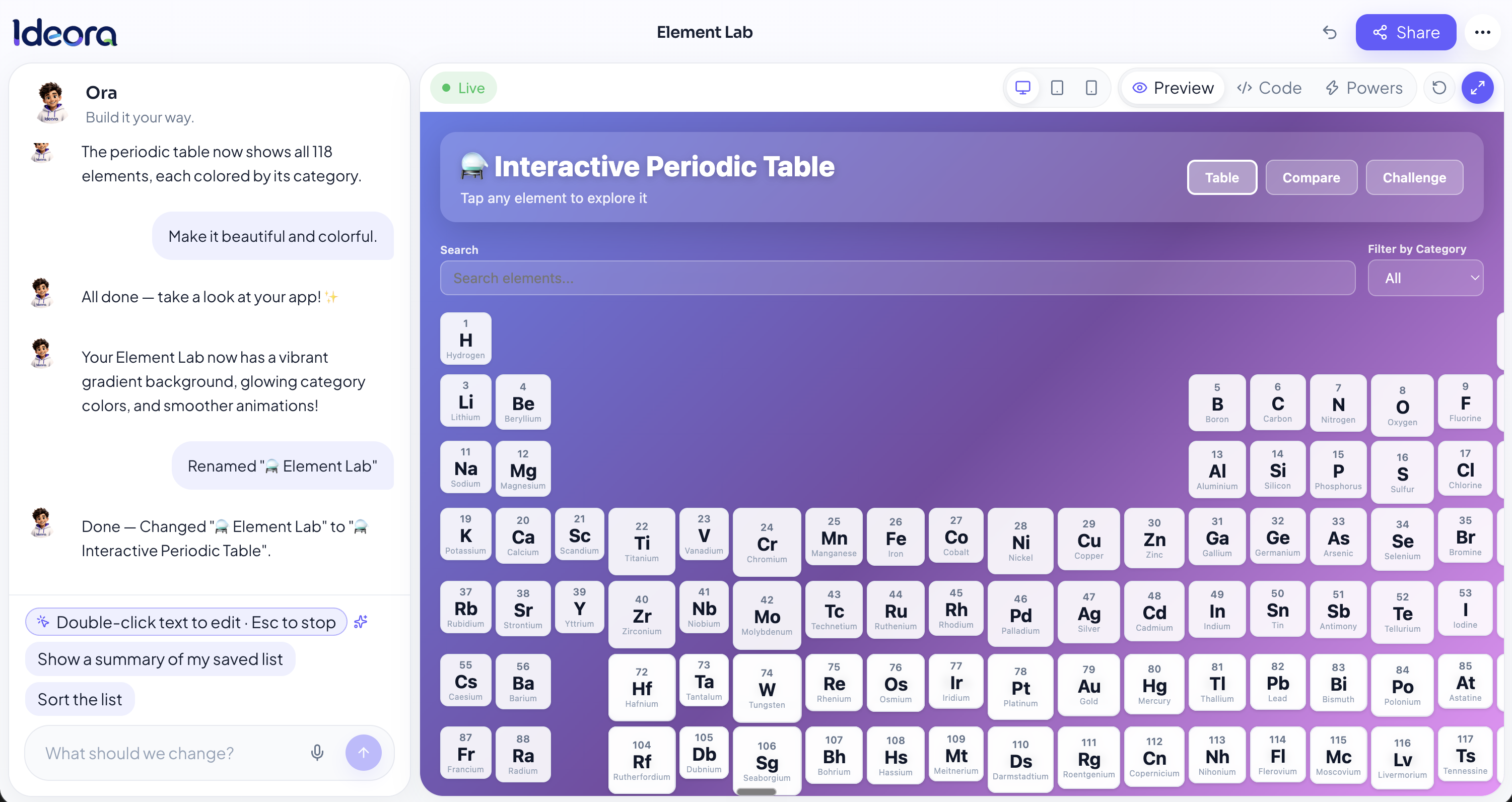
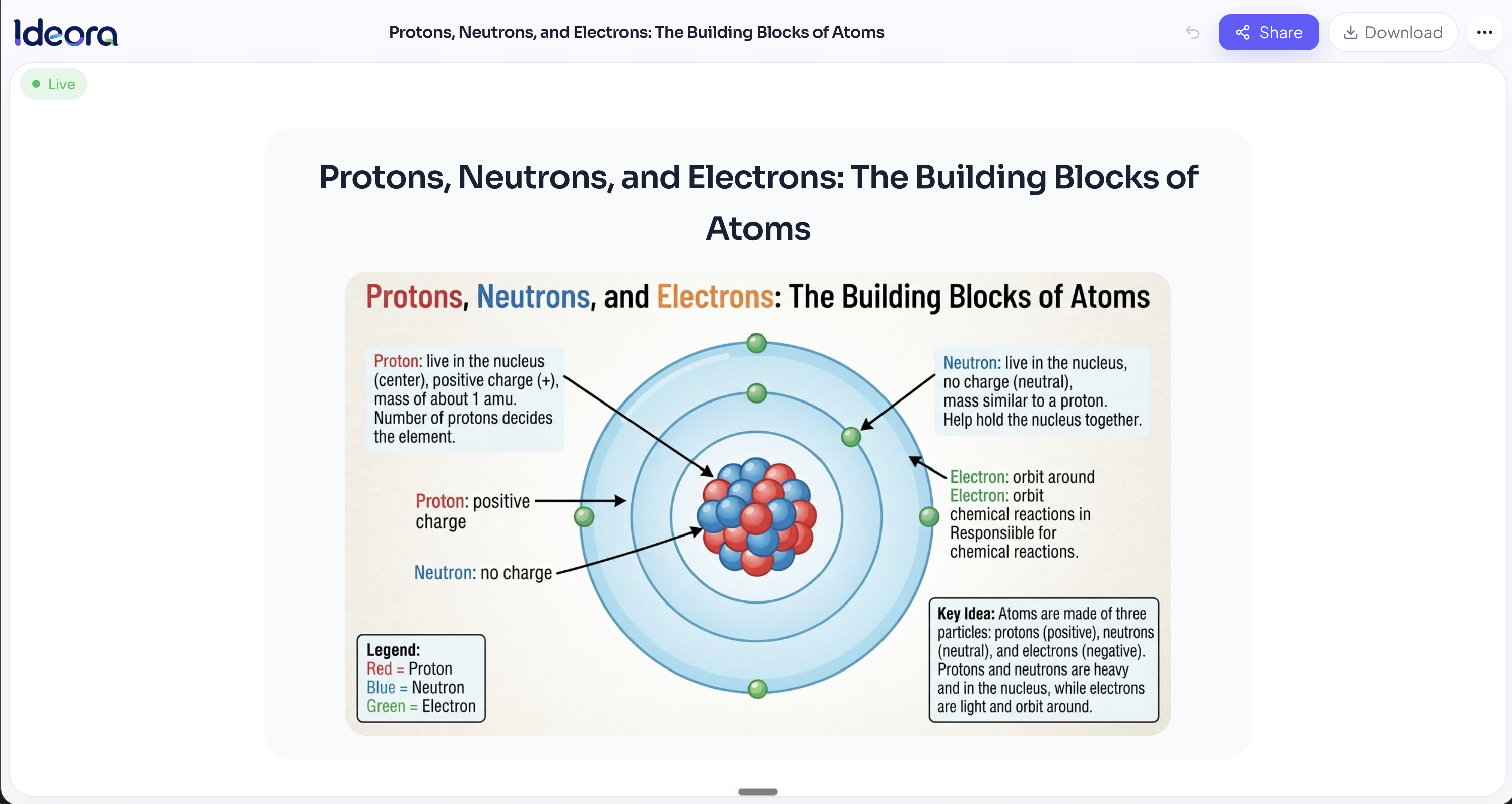
Published, live, and openable by anyone with the link — not one of these is a screenshot of a demo.
From a sentence to a working app.
Start with ordinary language. Keep going until the idea becomes yours.
- 01
Describe it
Start with an idea, not syntax.
A student types what they want in ordinary language.
“Make an app that helps me revise for exams.”
No coding background required.
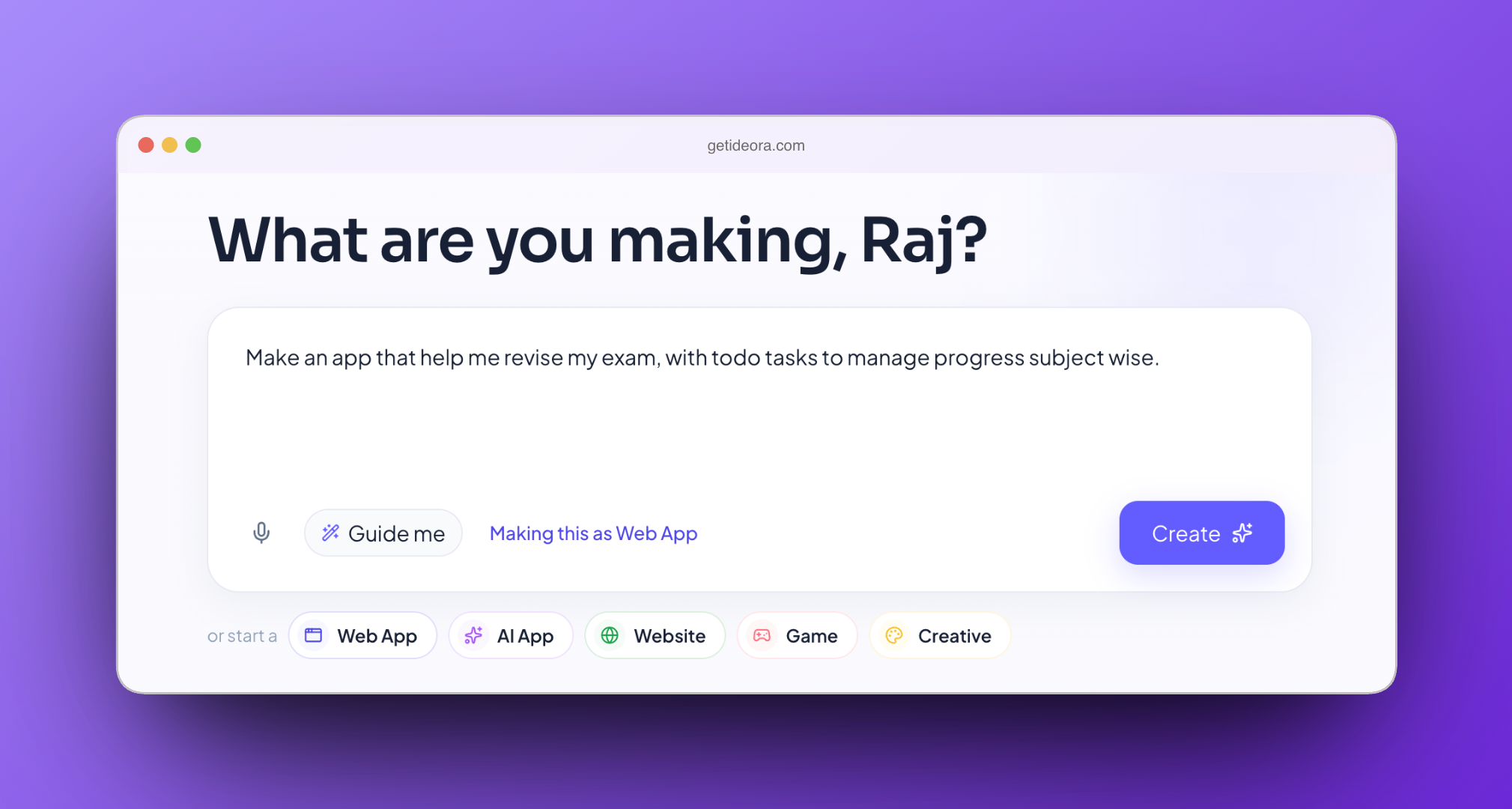
Start with an idea in ordinary language — no coding required - 02
Make it clearer
Ideora asks before it builds.
When an idea is vague, Ideora asks two or three quick questions — who is it for, what should it do — so the first version is closer to what the student actually meant.
Being specific gets better results.
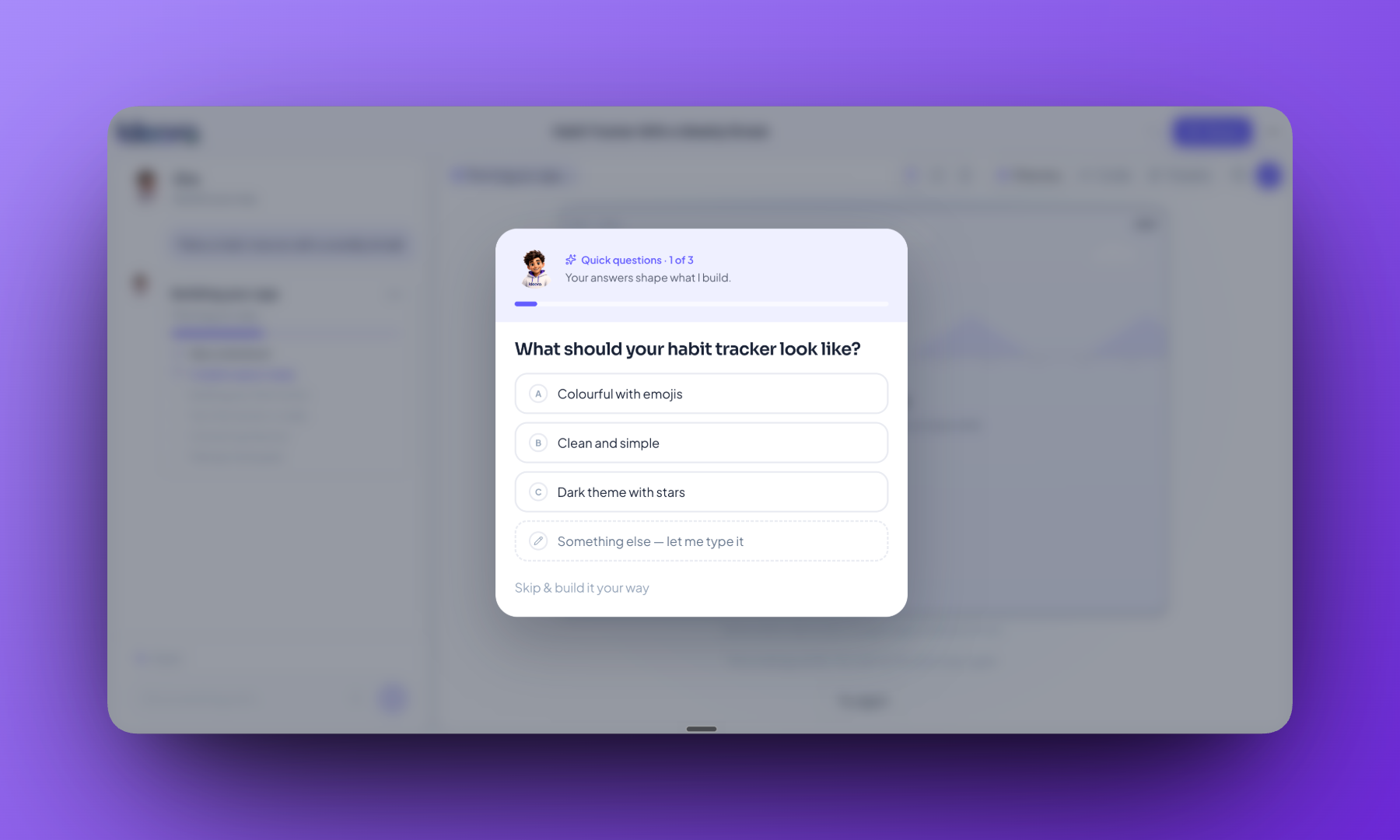
Ora asks a few quick questions so the first version matches the idea - 03
Watch it become real
Not a picture of an app. An app.
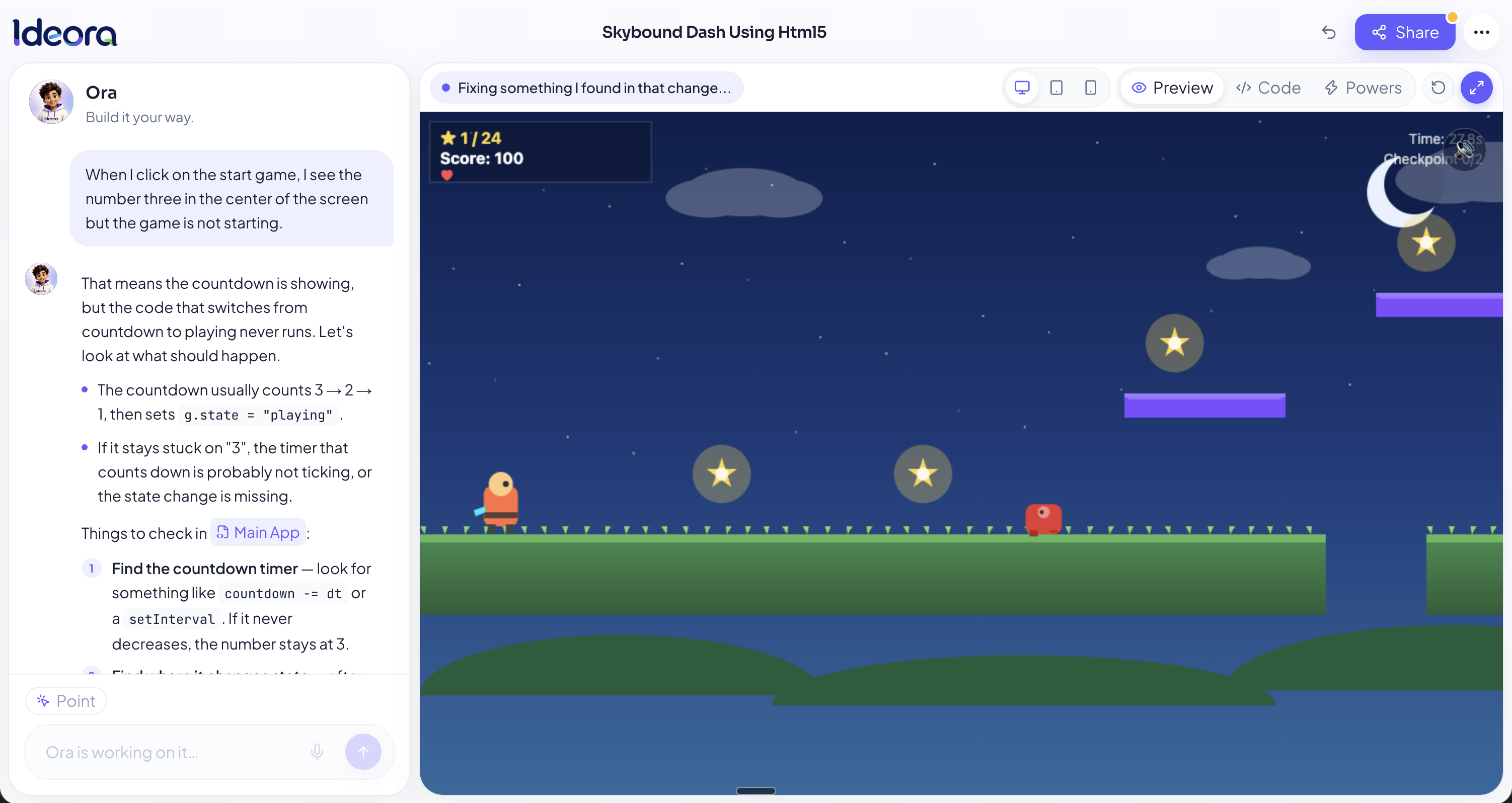
Buttons work. Information can be saved. The Creation adapts across desktop, tablet and phone.
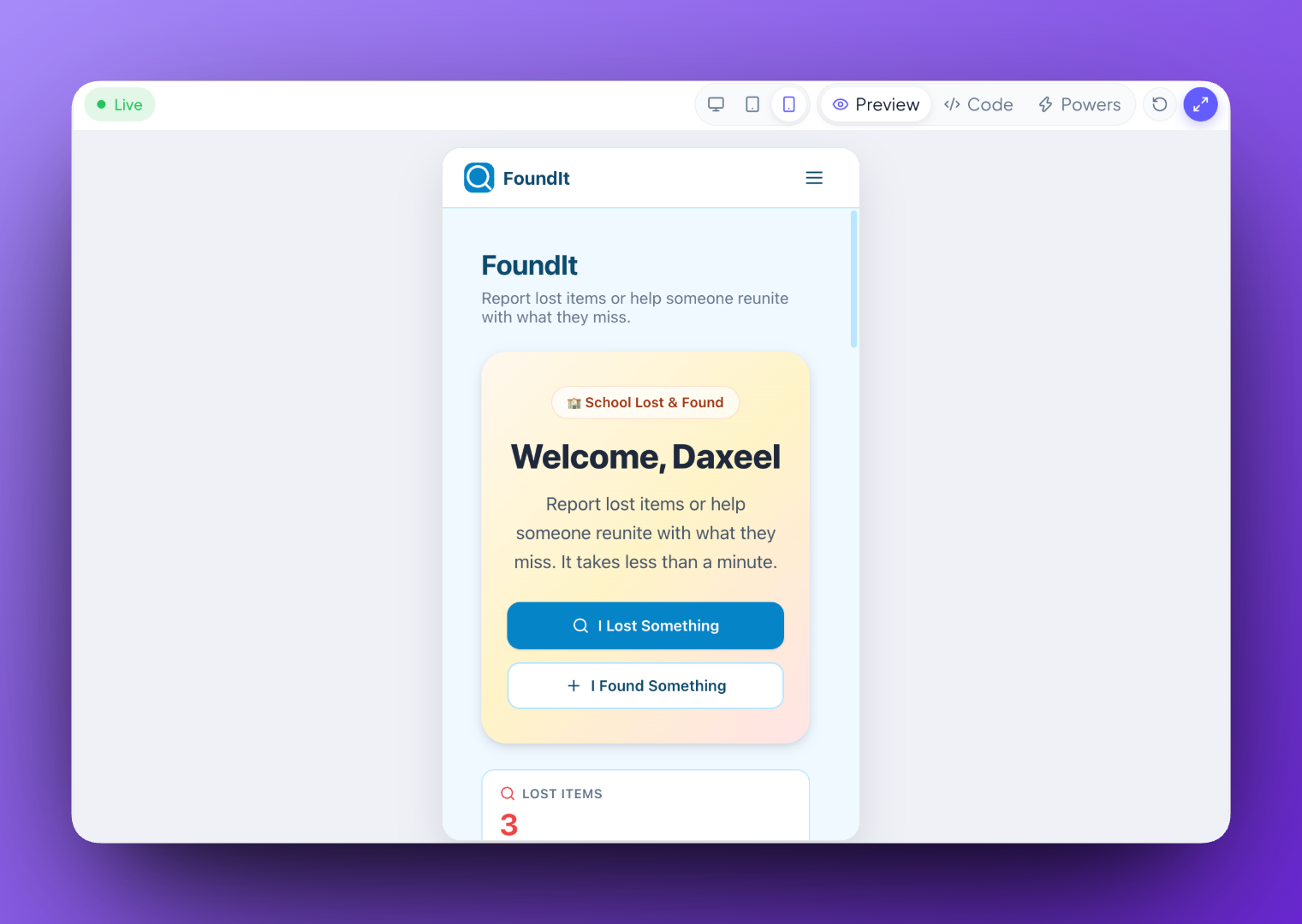
Adapts to every screen - 04
Change it
The first version is only the beginning.
Students can ask Ora to make changes, point directly at something they want changed, or open the code themselves.
“Make the buttons bigger.”
“Make the buttons bigger.”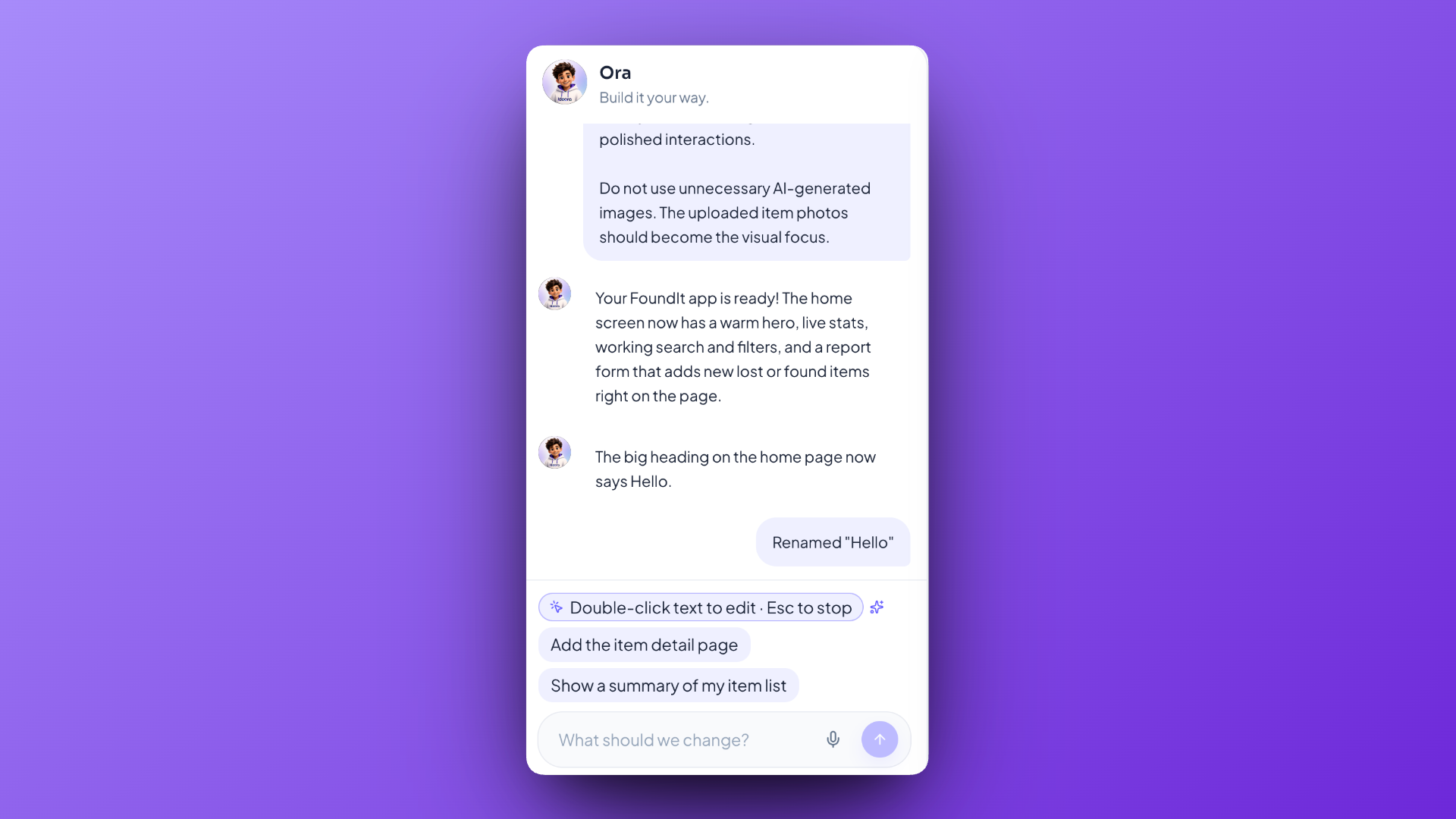
Updated instantly
- 05
Publish it
Make something today. Share it today.
One button Publishes the Creation to a real web address that can be opened on a phone without an app-store install.
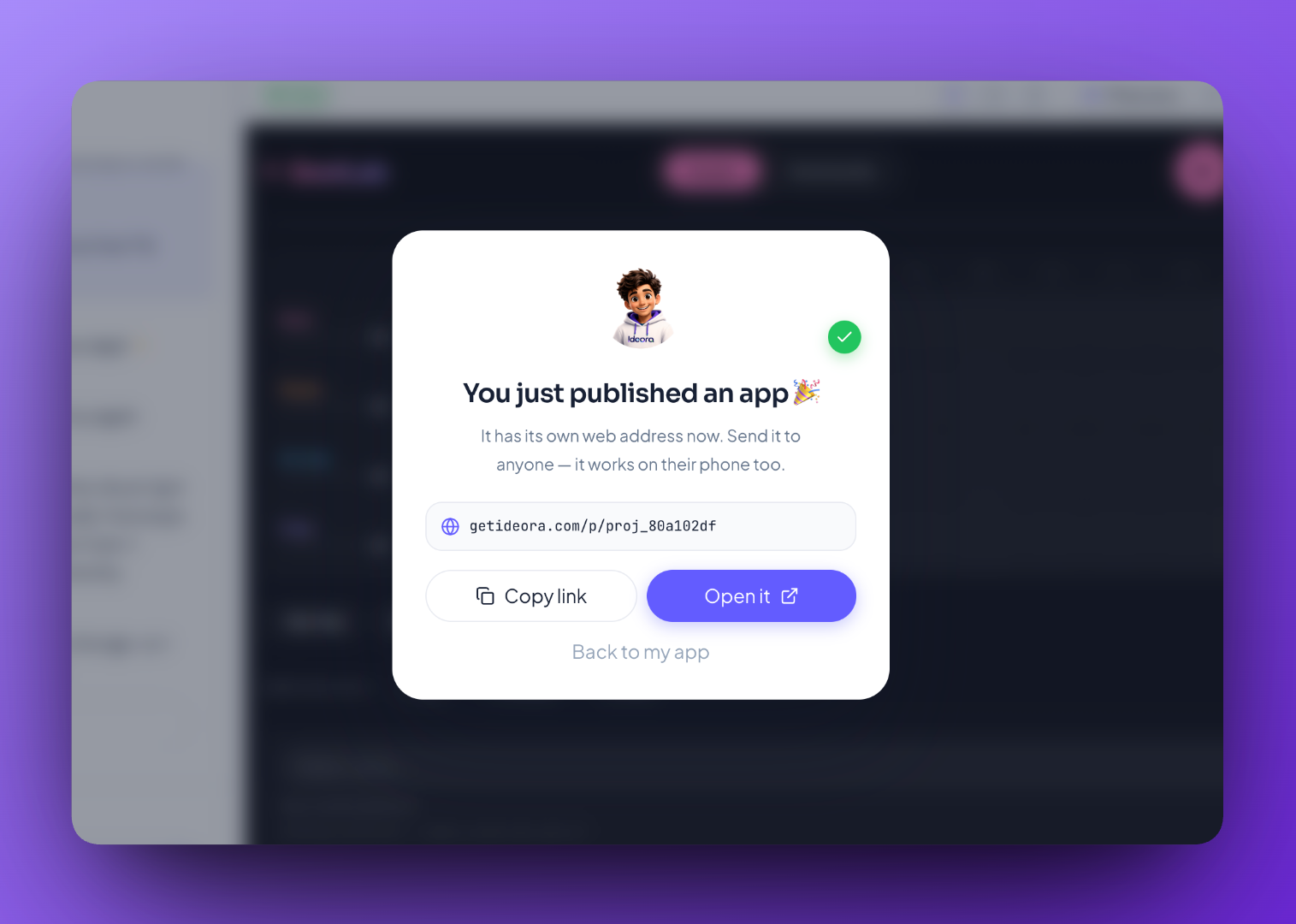
Opens in a browser — no app-store install
For the blank-page moment
Every student needs somewhere to begin.
Sometimes the hardest part of creating is the empty box. Missions replace it with a problem worth solving.
A teacher can give the whole class one Mission, while every student can take it in a completely different direction.
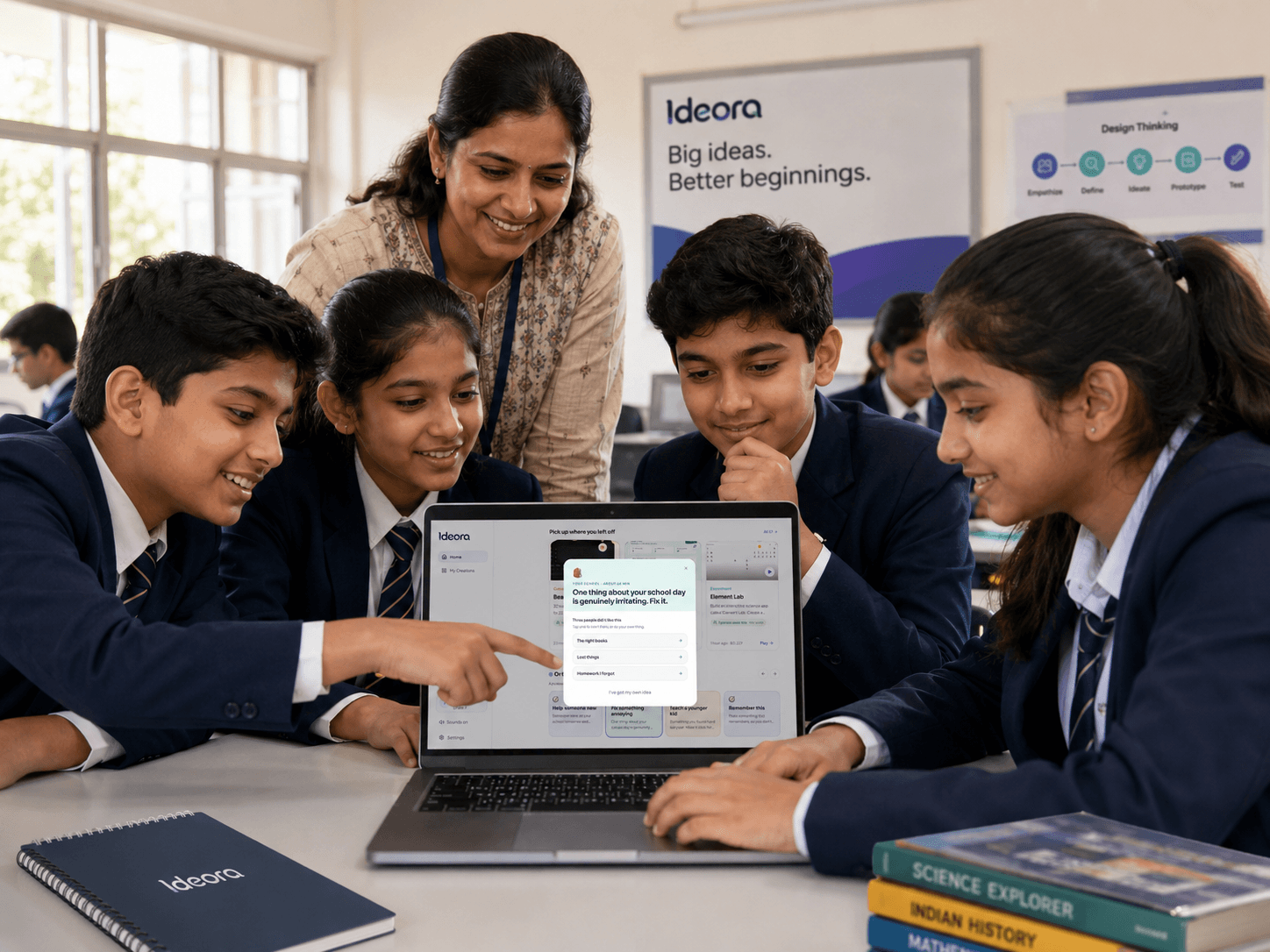
Already know what you want to make?
- Web App
- AI App
- Website
- Game
- Creative
Make it more capable
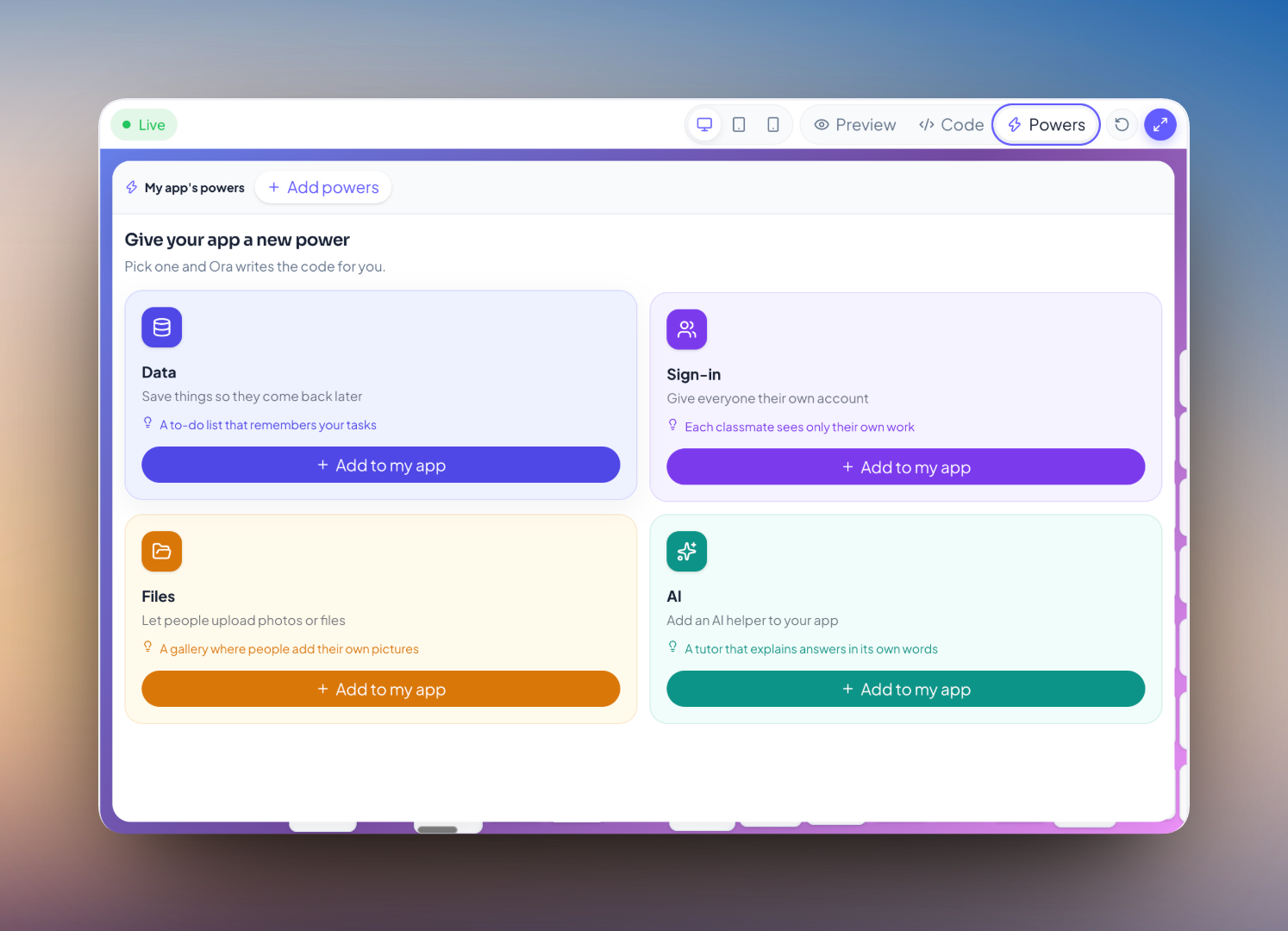
Give your Creation Powers.
Students don't need to think in APIs or infrastructure. They simply describe what they want their Creation to do.
Four Powers, in plain English
Remember information
“It remembers my entries even after I close it.”
Think and respond
“It can answer questions and write things.”
Accept files
“People can upload photos to it.”
Know who's using it
“Everyone gets their own account.”
That’s all a student has to say. Ideora wires up the technology behind the scenes.
Meet Ora
Your co-builder — and your teacher.
Ora lives inside the Studio. Students don't get one answer and move on. They keep going — changing how things look, adding what's missing, reading the code, fixing what's broken, and understanding why it all works.
What Ora helps with
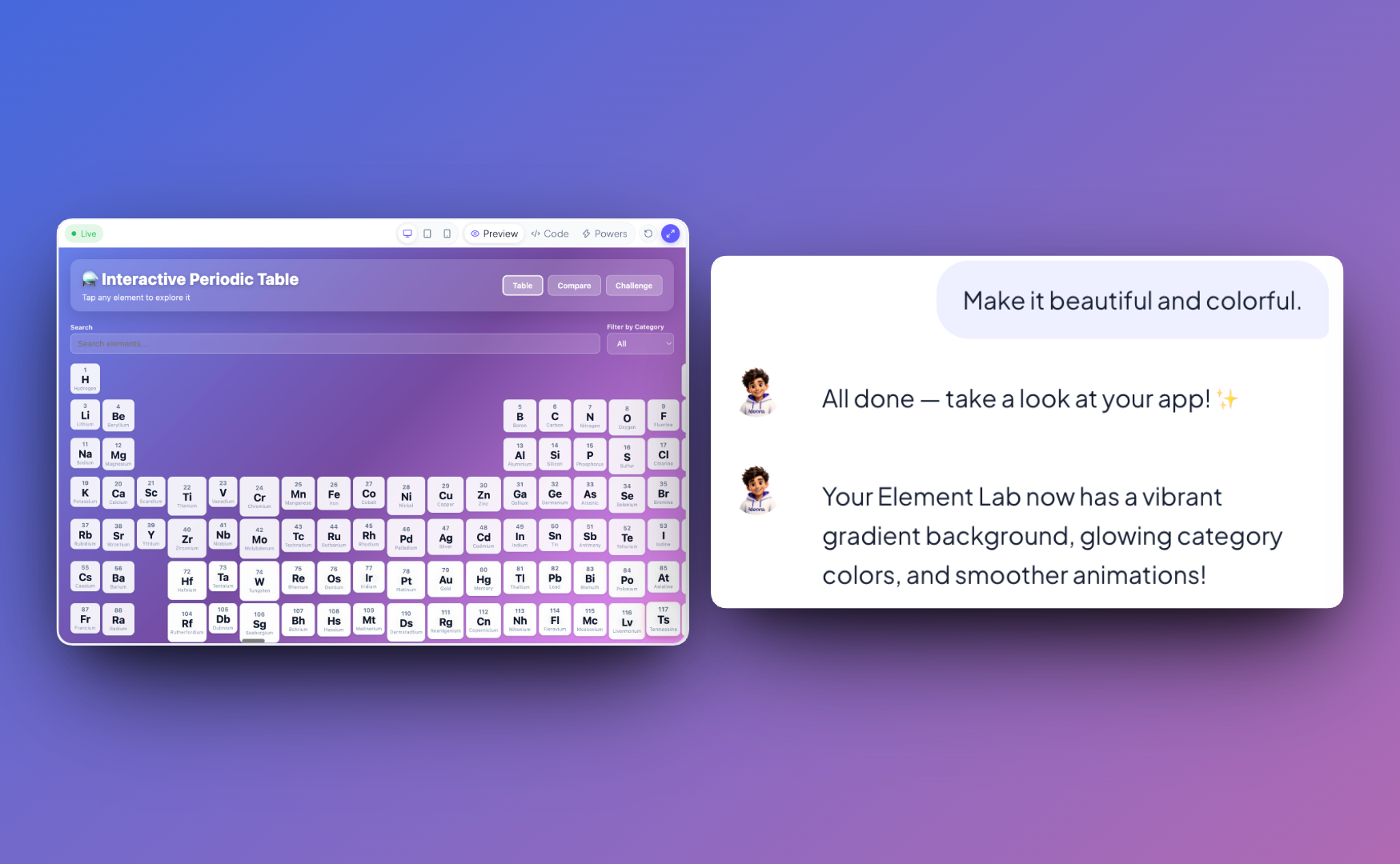
“Make the buttons bigger and use our school colours.”
Done — updated the layout without you touching CSS.
Five ways students use Ora — often in the same afternoon.
Point. Change. Experiment.
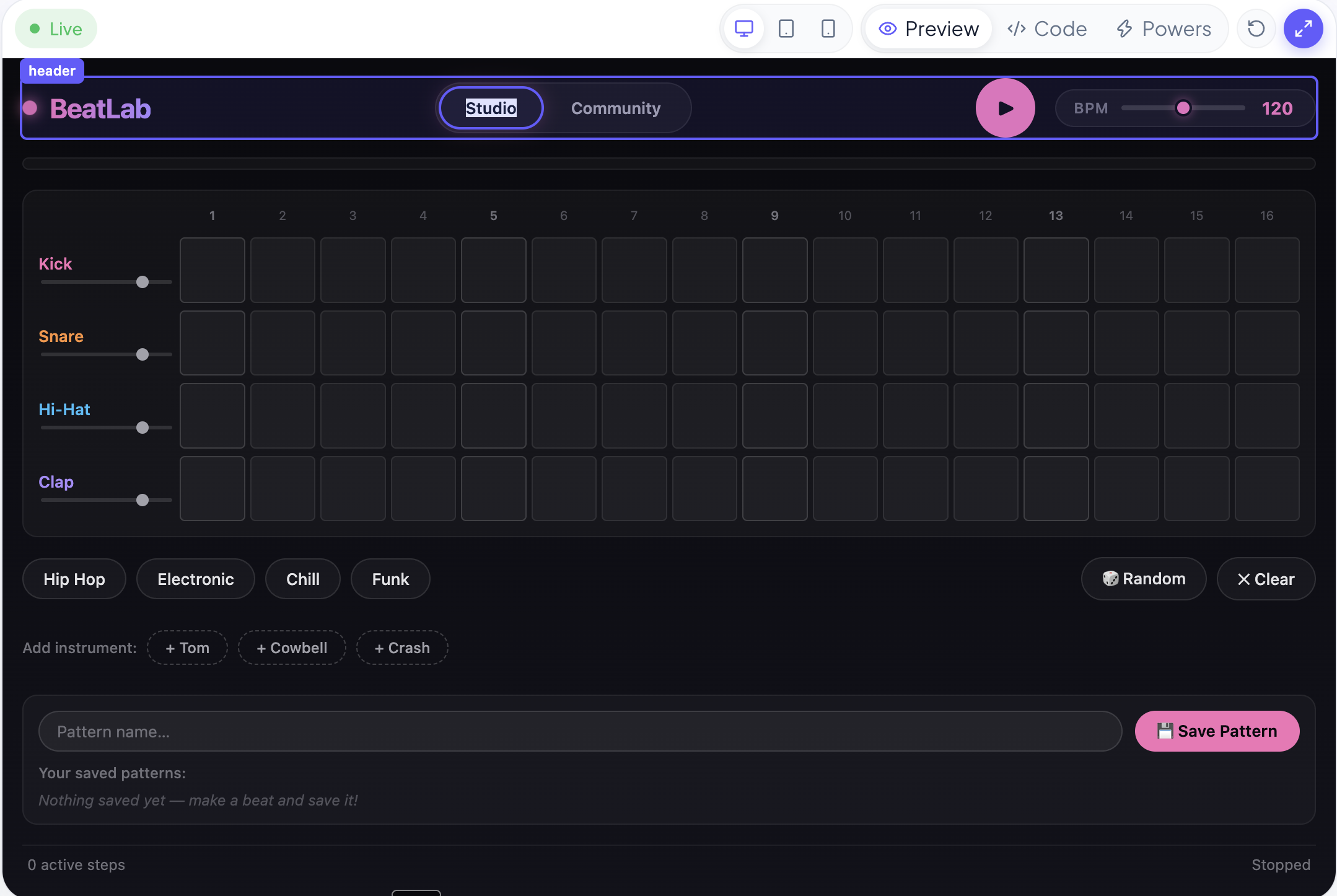
Students can select something directly inside their running Creation and change it without having to describe where it is.
Experimentation should feel natural — even the first time a student opens Ideora.
And when they're curious
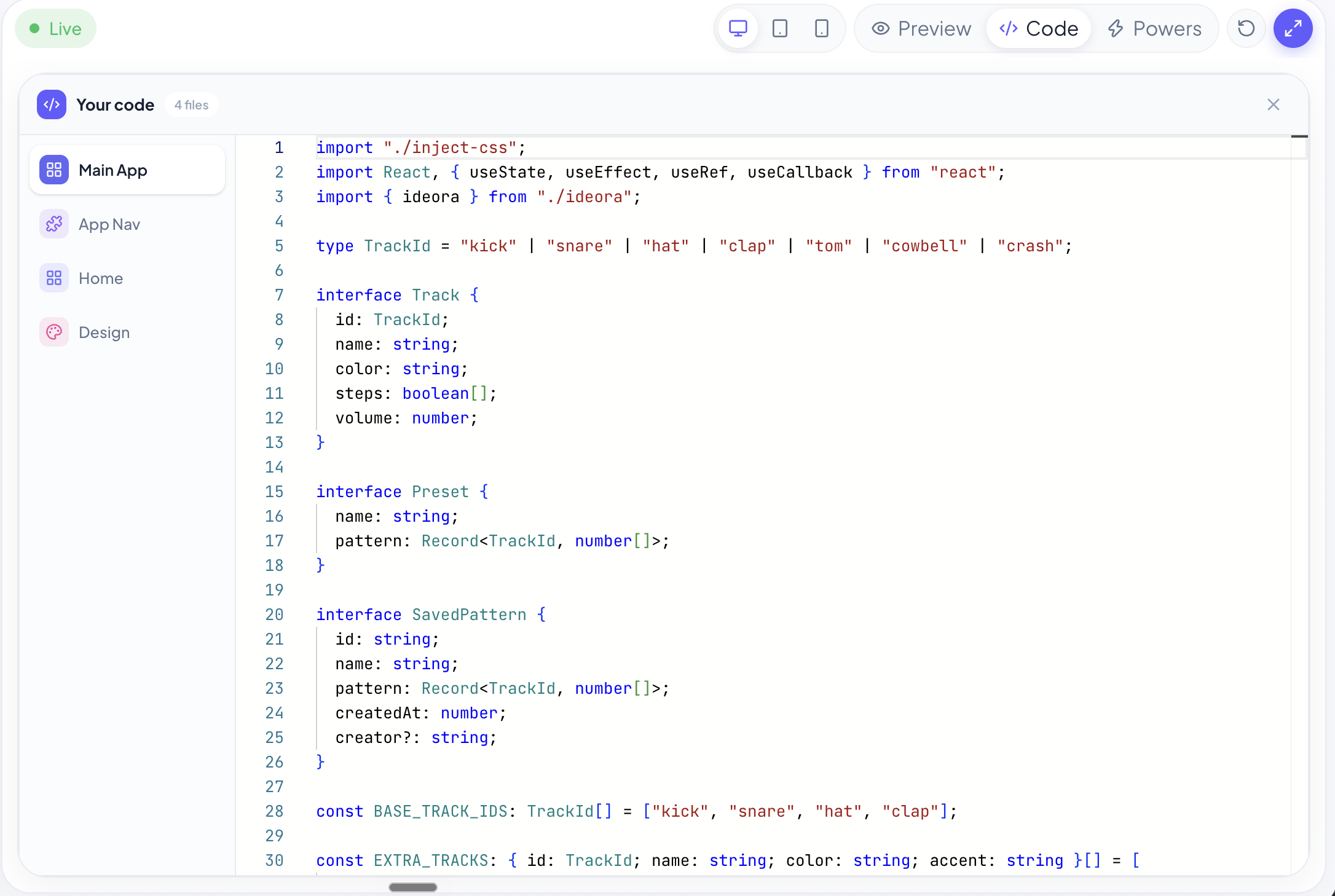
The code is still there.
Ideora doesn't hide code behind AI. Students who want to go deeper can open it, read it and change it themselves.
And yes — they can break it.
Press it. Nothing here is precious — that is the entire point.
20function Card({ title, note }) {21 return (22 <div className="card">23 <h2>{title}</h2>24 <p>{note}</p>25 </div>26 );27}Freedom to experiment, without the fear of getting stuck.
Every version is kept. Students can return to an earlier version whenever they need to.
From the classroom to the real world
Make something today. Share it today.
Every Creation can be Published to a real web address and opened on a phone without an app-store install.
- Family — Open it at home.
- Friends — Send the link.
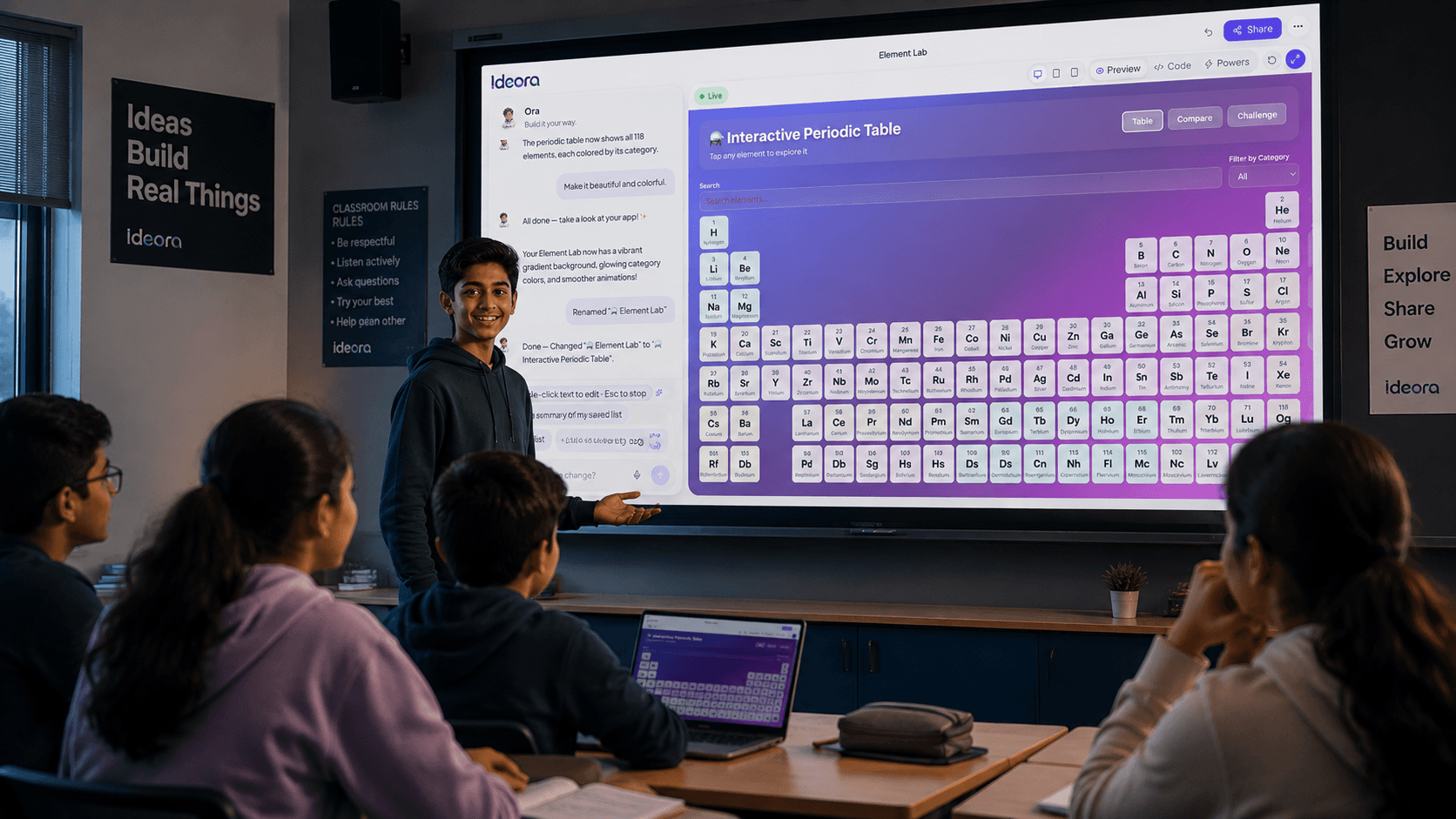
- Classroom — Present it full-screen.
“I made this.”
One experience. Different reasons to care.
Made for an ordinary school environment.
- Browser and internet are enough.
- No specialist lab software required.
- Students do not manage their own AI API keys.
- Usage can be capped.
- Creations remain private until someone chooses to Publish.
What students are really practising.
Ideora isn't about getting AI to make things for them. It gives students a reason to think, explain, experiment and create.
One arc — from a vague idea to something that works
Imagine
Turn an open-ended idea into something specific.
Communicate
Explain what they want clearly enough for AI to act on it.
Experiment
Try something, see what happens and change direction.
Understand
Look inside what they created instead of treating technology as magic.
Solve
Start with a problem rather than a predetermined answer.
Create
Finish with something that actually works.
What could students create?
The answer shouldn't be one thing.
Exam revision helper
Vocabulary game
School club website
Neighbourhood guide
Habit tracker
Physics formula calculator
Digital art portfolio
Something nobody has thought of yet.
The point isn't teaching every student to build the same thing.
It's giving every student the ability to build their thing.
Ready for the classroom
Built for curiosity. Designed for control.
The creative experience feels open to students. The infrastructure around it doesn't have to be.
Browser-based
A browser and internet are enough. No specialist software rollout.
No student AI keys
AI features run through Ideora. Students don't need to create or manage their own model API keys.
Isolated Creations
Each Creation runs in its own sandbox with its own data.
Private until Published
Nothing becomes public until someone chooses to Publish it.
Usage limits
Daily project limits help keep AI usage controlled.
Visible AI usage
Projects can show what they have used, with hard limits designed to prevent runaway usage.
Age-aware safeguards
The experience is written for Classes 6–12 and unsafe requests are refused.
See Ideora in your school
What does a school need?
A browser. Internet. Ideas.
No prior coding experience required for students. No specialist equipment.
They arrive with:
“I have an idea.”
They leave with:
“I made this.”
What could your students create?
Give them a browser, an idea and Ideora.
See what happens when students stop only using technology — and start creating with it.